Website Quick Guide for Town Staff
Short, step by step help for updating the Town of Pilot Mountain website. Every screenshot comes from the real website.
Try it yourself on the demo site
Sign in at pilotmountainsamplesite.customapplicationdevelopment.online/admin, or press Staff Sign In at the top of any page.
| Account | Email and password |
|---|---|
| Administrator (edits everything) | demo.staff@pilotmountain-demo.org / PilotMtnDemo2026! |
| Police Department editor | police.editor@pilotmountain-demo.org / CreekMain-8767! |
These are demo logins for the sample site only. Each staff member gets their own login when the new site goes live.
1. Sign in
What this is for: Sign in to turn on the Edit buttons across the website.
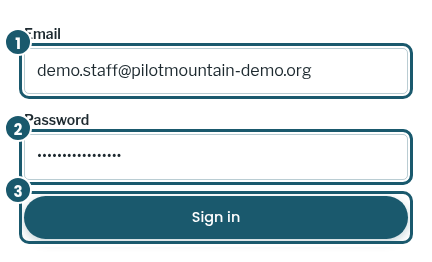
- Go to any page on the website.
- Press Staff Sign In in the teal bar at the very top right.
- Type your work email and your password.
- Press Sign in.

2. The dashboard and the Editing mode bar
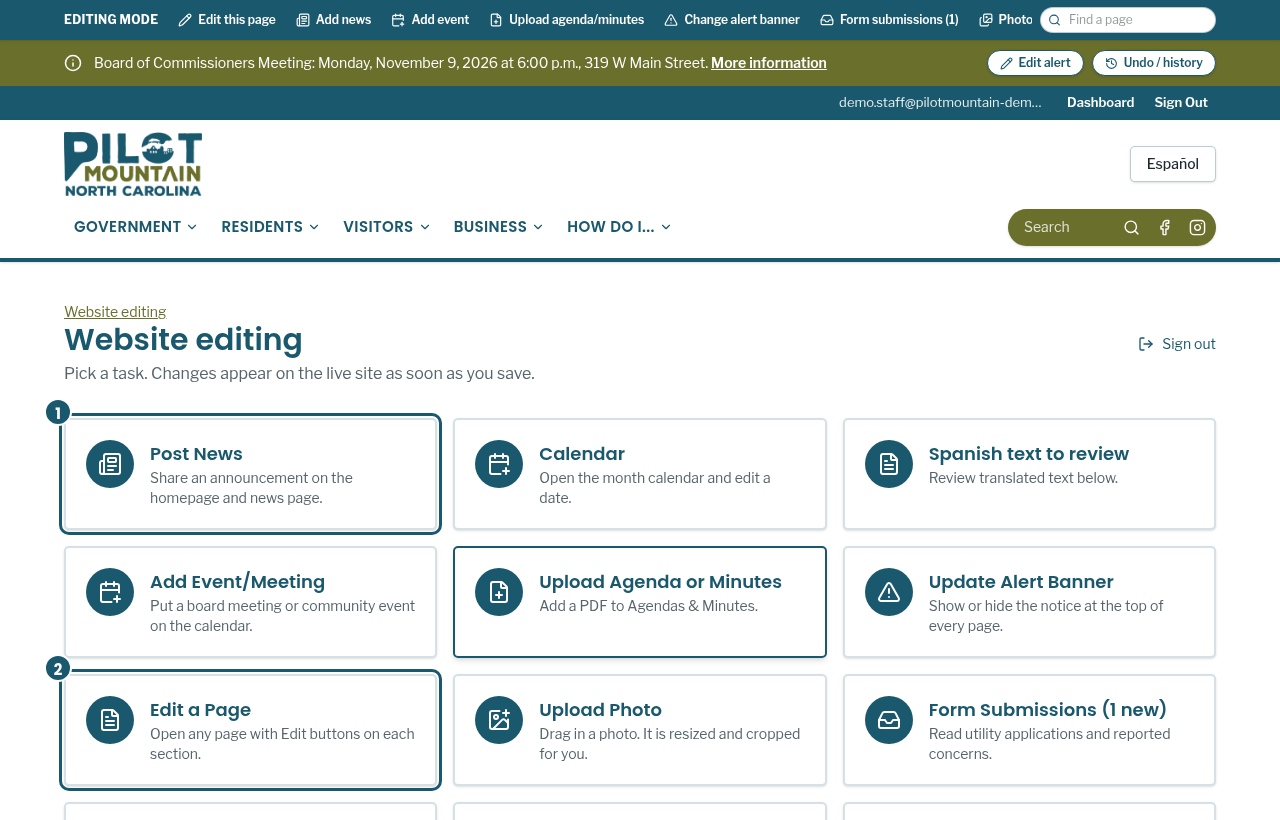
What this is for: The dashboard lists every task. The Editing mode bar gives you the same shortcuts on any page.
- After you sign in, you land on the Website editing dashboard.
- Press a big button, for example Post News or Edit a Page, to start a task.
- While signed in, the teal Editing mode bar stays at the top of every page.
- Press Edit this page in that bar to edit the page you are looking at.

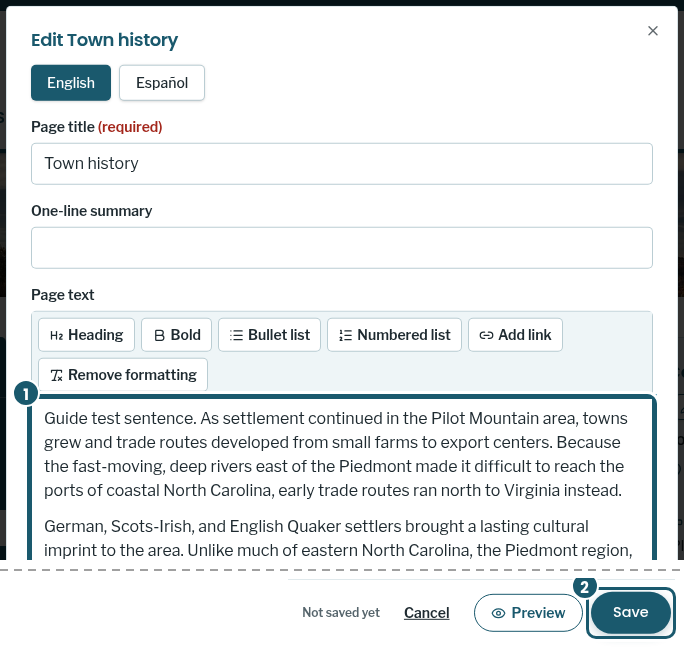
3. Edit this page
What this is for: Change the words on any page.
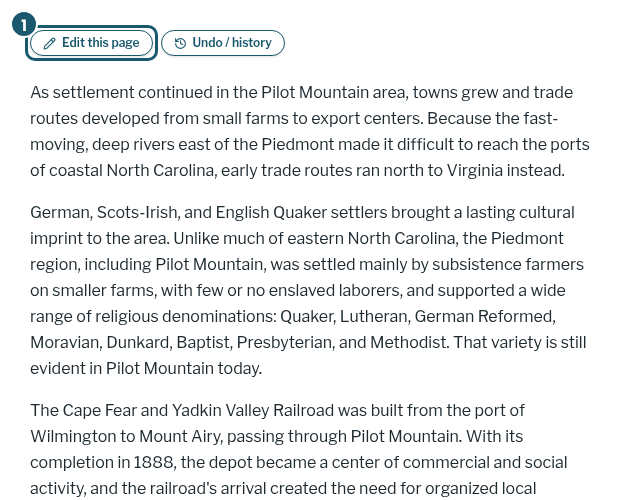
- Open the page you want to change.
- Press Edit this page near the top of the page.
- Click in the Page text box and change the sentence. Use the toolbar for bold, lists or links.
- Press Save. The live page updates right away.
4. Change a photo
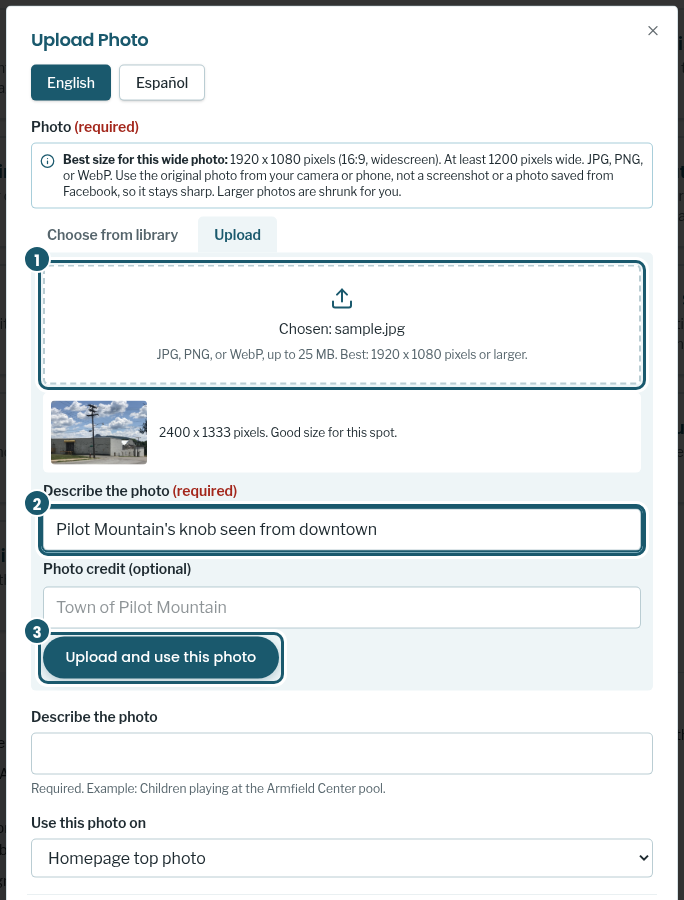
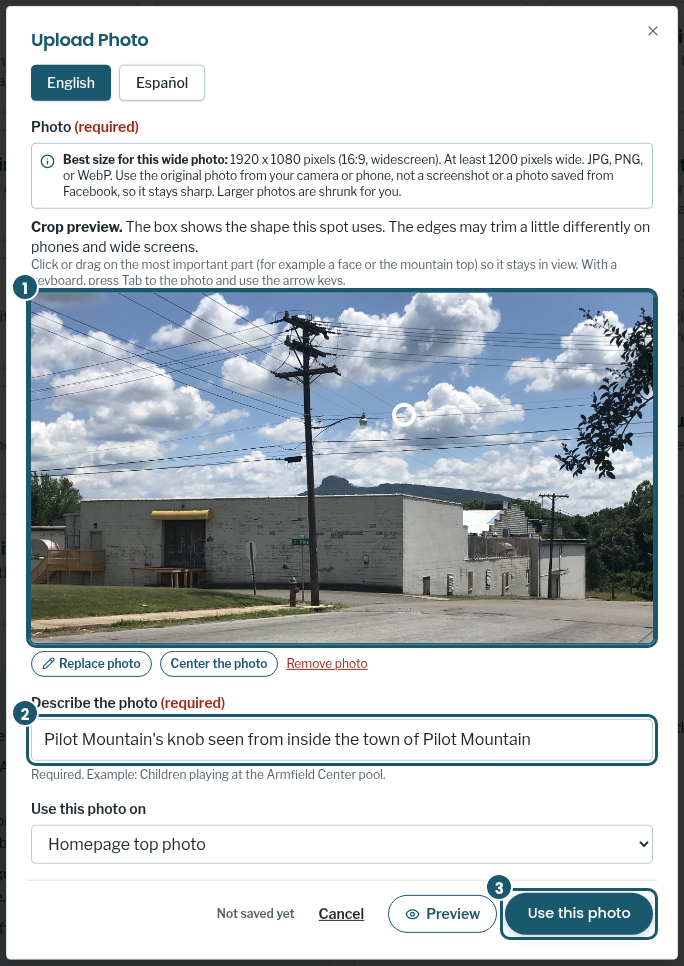
What this is for: Put a new photo on the homepage or a department page.
- On the dashboard, press Upload Photo. On a page, press Edit and then Replace photo.
- Press Upload and drag your photo into the box, or press Choose from library.
- Describe what is in the photo. This is required for people who use screen readers.
- Drag on the preview to choose the part that must stay in view.
- Press Save (on the dashboard this button says Use this photo).
5. Post news
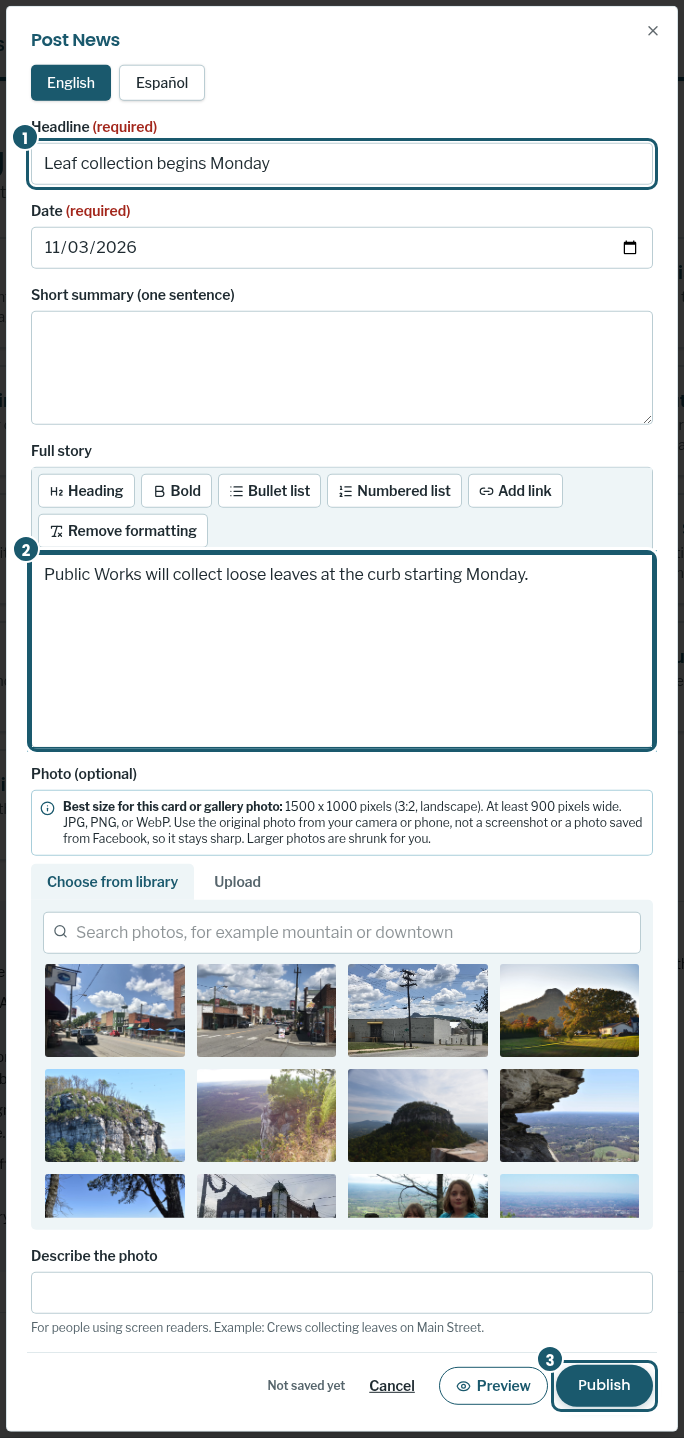
What this is for: Share an announcement on the homepage and the News page.
- On the dashboard, press Post News.
- Type a short headline.
- Type the story in the Full story box. A photo is optional.
- Press Publish.
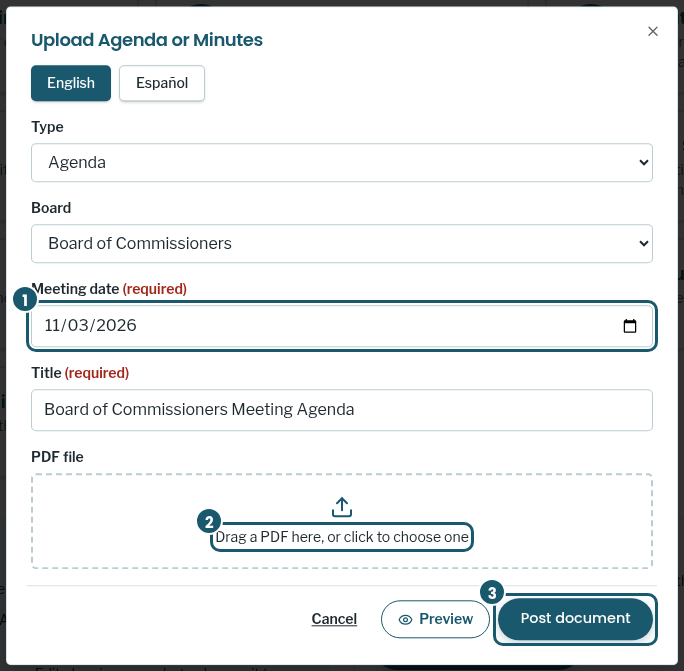
6. Upload an agenda or minutes
What this is for: Add a meeting PDF to the Agendas and Minutes page.
- On the dashboard, press Upload Agenda or Minutes.
- Pick Agenda or Minutes, the board, and the meeting date.
- Drag the PDF into the box, or click the box to choose the file.
- Press Post document.
7. Change the alert banner
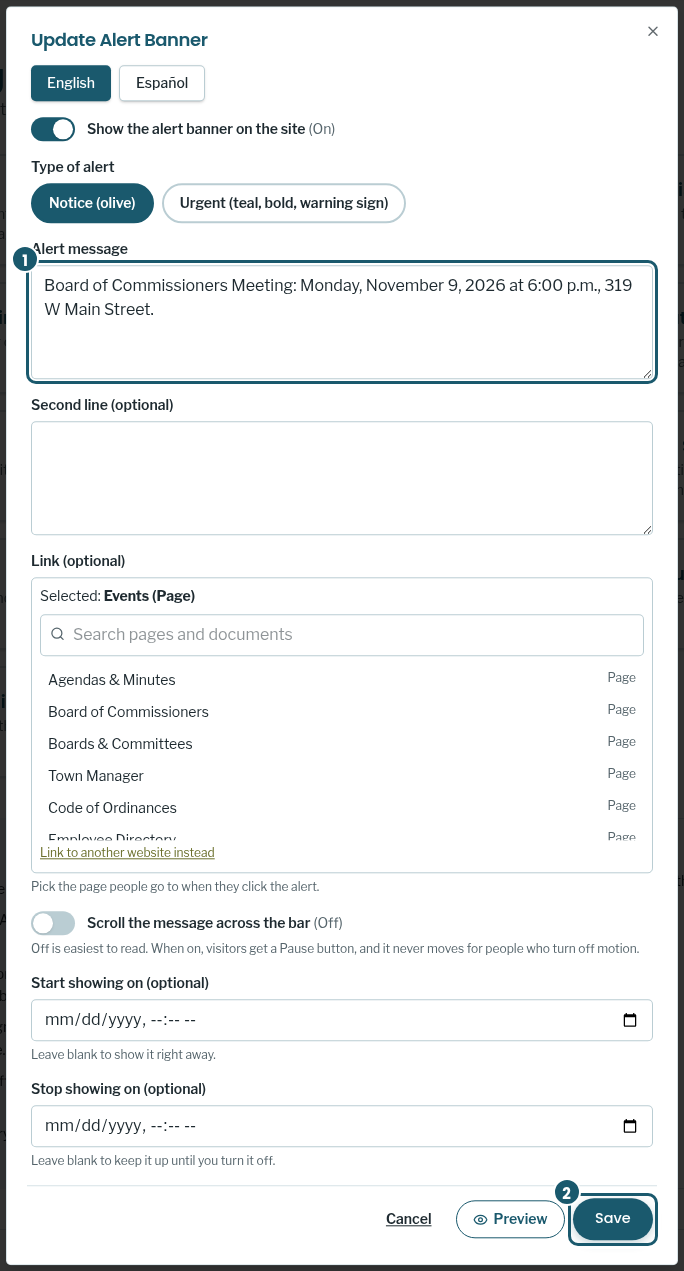
What this is for: Show a notice at the top of every page, such as a meeting or a water outage.
- On the dashboard, press Update Alert Banner. You can also press Edit alert on the banner itself.
- Turn the banner on or off and pick Notice or Urgent.
- Type the message. Pick a page to link to if you want.
- Press Save.
8. Undo a change
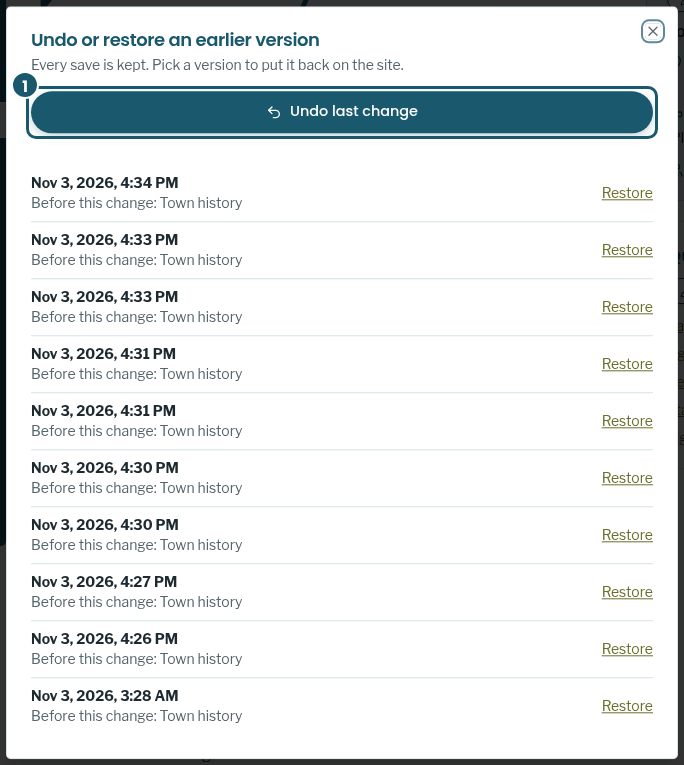
What this is for: Put back the earlier version if something was changed by mistake.
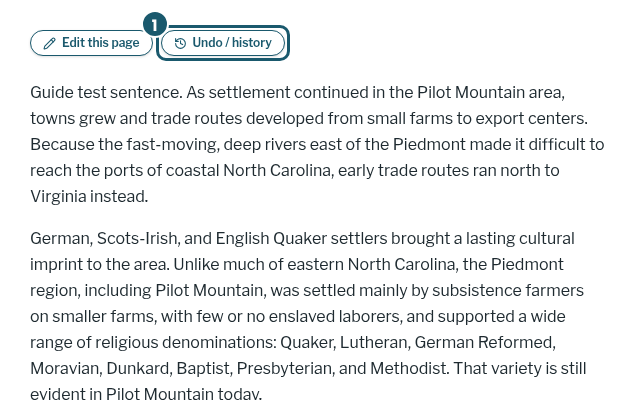
- Go to the page or section that changed.
- Press Undo / history next to its Edit button.
- Press Undo last change, or press Restore next to an older version.
- The earlier version is back on the live site right away.
9. Check form submissions
What this is for: Read what residents send through the online forms and track your follow up.
- On the dashboard, press Form Submissions.
- Press Show details to read a submission.
- When the request is handled, change Status to Done.
- Use the Show menu to see New, In Progress, Done or All.

10. Add a staff editor
What this is for: Let a department head update their own department page.
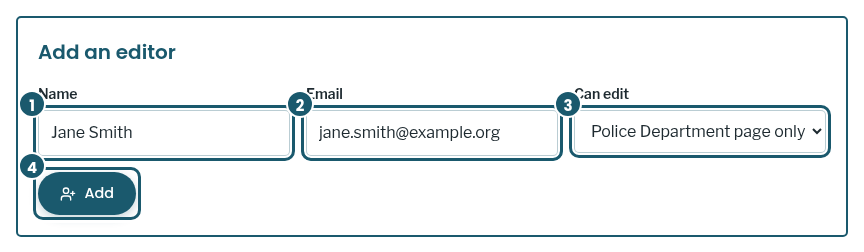
- On the dashboard, press Manage Staff Editors.
- Type the person's name and work email.
- Under Can edit, pick their department.
- Press Add. They can then sign in and edit only that page.
11. For department editors
What this is for: Department editors go straight to their own page after signing in.
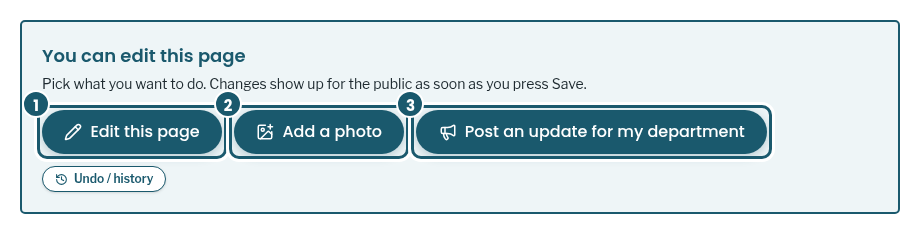
- Sign in with Staff Sign In. You land on your department page.
- Press Edit this page to change the text.
- Press Add a photo to add a photo. It is sized to match the others.
- Press Post an update for my department to share news.
Need help?
- Made a mistake? Press Undo / history next to the Edit button. Every save is kept.
- Cannot see an Edit button? Make sure you are signed in. Department editors only see Edit on their own page.
- Forgot your password or need access? Ask the website administrator at Town Hall.
- The dashboard has a short "How do I..." list with these same tasks.